
Setting Up a New Laptop Received at Christmas: First Steps
The wrapping paper is off, the box is open, and there it is: a shiny new laptop. The temptation is to hit the power button immediately and start installing games, browsing the web and claiming your new machine. We understand the excitement, but we have seen too many people spend Boxing Day evening fighting driver errors, bloatware pop-ups and a half-finished Windows setup. Spending a measured first hour on proper configuration saves you hours of hassle later, and it means your laptop runs faster, safer and for longer. Here is the exact order we recommend for setting up a new laptop in the UK.
Unbox and Inspect Before You Power On
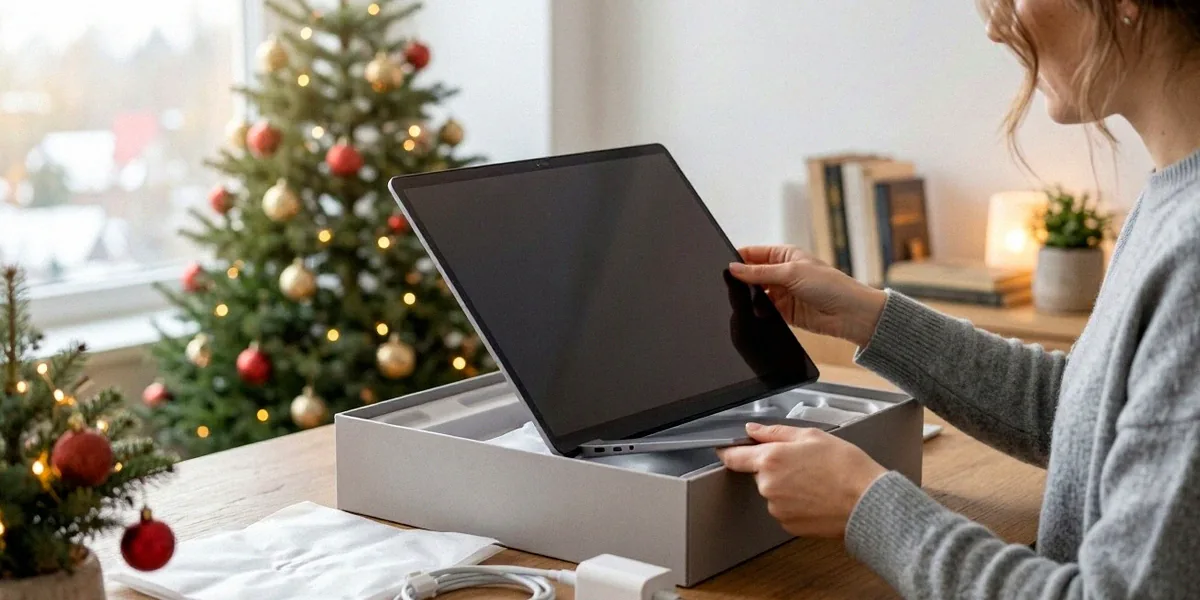
Before you plug anything in, take five minutes to check what you have actually received. Faulty units and wrong configurations are far easier to resolve in the first few days, while you are still inside the retailer’s returns window.
What to Check in the Box
- Inspect the outer box for crush damage, water marks or signs of rough handling in transit.
- Confirm the model number on the label matches what you ordered — for example, a Lenovo IdeaPad Slim 5 versus a Slim 3, or a Dell Inspiron 15 3000 versus a 5000 series.
- Check the power adapter wattage. A 65W charger paired with a laptop that expects 90W will charge painfully slowly.
- Look for any dead pixels, scratches or loose hinges before you connect to the internet.
- Keep all packaging until you are certain you are keeping the machine.
Recording Your Serial Number and Proof of Purchase
Find the serial number — usually on a sticker underneath the laptop or inside the battery compartment on older models — and photograph it alongside your receipt. If you bought from Currys or John Lewis, warranty and returns are handled through them, and having the serial number and order reference to hand makes any claim dramatically quicker. Register the laptop with the manufacturer as well; most brands extend the standard warranty slightly if you register within 30 days of purchase.
First Boot: Windows 11 Out-of-Box Experience
The Windows 11 out-of-box experience (OOBE) is where most people rush. Slow down here, because a few choices made now are difficult to reverse later.
Region, Keyboard and Wi-Fi Settings
Select United Kingdom as your region. This sets the correct date format, currency, keyboard layout and — importantly — the right Microsoft Store content and local services. Choose the United Kingdom keyboard layout, then connect to your home Wi-Fi. If your router broadcasts both 2.4GHz and 5GHz bands under the same name, you do not need to worry; Windows will pick the better band automatically. If you are on a metered connection or a slow rural broadband line, consider completing setup offline and running updates overnight instead.
Microsoft Account vs Local Account
Windows 11 pushes hard towards a Microsoft account, and for most users it is the right call: it syncs your settings, enables Find My Device and gives you 5GB of free OneDrive storage. A local account, by contrast, keeps your data entirely on the machine and avoids tying your login to an internet connection. If you want a local account, you can still create one during OOBE by disconnecting from Wi-Fi and choosing the offline option, though Microsoft has made this increasingly fiddly with each feature update. Whichever you pick, set a strong password and enable a PIN.
Skipping Trial Offers and Bloatware
During setup you will be offered Microsoft 365 trials, Game Pass promotions and various “recommended” apps. Decline everything you do not specifically want. You can always subscribe later, and skipping now keeps the Start menu clean. Once you reach the desktop, open Settings > Apps > Installed apps and remove anything you will never use — pre-installed trial antivirus tools are the biggest offenders.
Updates, Drivers and Security Essentials
A brand-new laptop is rarely fully up to date. It may have sat in a warehouse for months, so the Windows build, drivers and firmware are all likely to be behind.
Running Windows Update Until It Stops Finding Updates
Open Settings > Windows Update and click Check for updates. Install everything, reboot, and then check again. Repeat this loop until Windows reports no further updates. It is not unusual to go through three or four rounds on a fresh machine, because some updates only appear once earlier ones are installed. This single step prevents a huge proportion of the driver and stability problems we see on new hardware.
Installing Manufacturer Drivers and BIOS Updates
Windows Update covers the basics, but manufacturer tools fill the gaps. Install the appropriate utility for your brand:
- Lenovo Vantage for IdeaPad, ThinkPad and Legion laptops
- Dell SupportAssist for Inspiron, XPS and Latitude machines
- HP Support Assistant for Pavilion, Envy and EliteBook models
Run the driver scan and apply anything it flags, particularly chipset, graphics and BIOS updates. BIOS updates should always be done with the laptop plugged into mains power.
Turning On BitLocker and Windows Hello
BitLocker device encryption is available on Windows 11 Pro and on many Home editions where the hardware meets the requirements (TPM 2.0 and Modern Standby). Turning it on means that if the laptop is stolen, the drive contents are unreadable. You will find it under Settings > Privacy & security > Device encryption. Save your recovery key somewhere other than the laptop itself — a password manager or printed copy is fine. While you are there, set up Windows Hello with facial recognition or a fingerprint so you are not typing a password fifty times a day.
Battery Care and Power Settings for Longevity
Lithium-ion batteries degrade fastest when kept at 100% and warm. A few settings now will meaningfully extend the usable life of your new machine.
Using Manufacturer Battery Charge Limits
Many modern laptops let you cap charging at 80%. Lenovo Vantage, Dell Power Manager and HP Support Assistant all expose this option. If your laptop spends most of its life plugged in on a desk, set the limit to 80% and only charge to full when you genuinely need the runtime. If you rarely use it on battery, some tools offer a “primarily AC use” mode that holds the charge around 60%.
Configuring Power Mode and Sleep Settings
Under Settings > System > Power & battery, set the power mode to Balanced for everyday use and Best power efficiency when travelling. Set the screen to sleep after 5–10 minutes on battery and 15–20 minutes when plugged in. Enable Battery Saver to kick in automatically at 20%. Realistically, expect 6–9 hours of mixed use from a modern ultrabook and 3–5 hours from a gaming laptop — UK winter conditions do not change this much, but cold outdoor use will temporarily reduce runtime.
Essential Software and UK-Specific Setup
Now that Windows is patched and secure, install the software you actually need. Keep it lean.
Browsers, Password Managers and Backup Tools
- A browser of choice — Chrome, Firefox, Edge or Brave — and set it as default.
- A password manager such as Bitwarden, 1Password or Dashlane.
- A backup tool: File History is built in, or Macrium Reflect Free for full image backups.
- A PDF reader if you need more than Edge offers.
UK Apps and Services Worth Installing
For UK users, a handful of services are genuinely useful on a new laptop: BBC iPlayer for catch-up television, the NHS App for prescriptions and appointments, and your bank’s app if it offers a desktop or web companion. If you use a smart meter, your energy supplier’s app is worth having too. These are all optional, but they are the ones most people reach for within the first week.
What Not to Install on a New Laptop
Windows Security (Windows Defender) is already excellent, so do not install a second antivirus. Running two real-time scanners causes conflicts, slows boot times and can break Windows Update. Avoid “driver updater” utilities from unknown publishers, registry cleaners and browser toolbars. If you genuinely want extra protection, a single reputable suite is enough.
Data Transfer and Backup Strategy
Once the laptop is set up and secure, move your data across and put a backup routine in place. Doing this on day one means you never have to think about it again.
Moving Files from Your Old Laptop
Three approaches work well:
- OneDrive or another cloud service — simplest if you have fast broadband and enough storage.
- An external SSD — fastest for large photo, video or music libraries.
- A direct USB cable or network transfer — useful for very large volumes where cloud upload would take days.
Setting Up Automatic Backups
Enable File History under Settings > System > Storage > Advanced storage settings and point it at an external drive. For a more robust approach, Macrium Reflect can create full disk images that let you restore an entire system after a failure. Whatever you choose, test a restore once so you know it works before you actually need it.
FAQ
Do I need a Microsoft account to set up Windows 11?
No, but it is increasingly difficult to avoid. You can create a local account by disconnecting from the internet during setup, though Microsoft has removed this option in some recent builds. A Microsoft account is generally more convenient and enables features like Find My Device and OneDrive sync.
Should I charge my new laptop to 100% before first use?
Not necessary. Modern lithium-ion batteries do not have the “memory effect” that older batteries did. You can use the laptop straight out of the box. For long-term health, cap charging at 80% if your manufacturer’s tool supports it.
How long should the first Windows Update take?
Plan for one to three hours on a new machine, including multiple reboots. The exact time depends on your broadband speed and how long the laptop sat in stock. Run it overnight if you can.
Is Windows Defender enough, or do I need paid antivirus?
For the vast majority of UK users, Windows Defender combined with sensible browsing habits is entirely sufficient. Paid suites add extras like VPNs and identity monitoring, but they are not essential and running two real-time scanners will cause problems.
What should I do if the laptop is faulty out of the box?
Contact the retailer first — Currys and John Lewis both handle warranty and returns directly, and UK consumer law gives you a 30-day right to reject faulty goods. Have your serial number, order reference and photographs of the fault ready before you call.
A slow, methodical setup on Christmas Day pays off for years. By inspecting the hardware, configuring Windows 11 properly, applying every update, tuning the battery, installing only what you need and setting up a backup, you turn a generic new laptop into a fast, secure and reliable machine that will serve you well long after the tinsel comes down. We would love to hear your own Christmas setup tips — drop us a message and tell us what worked for you.


Post Comment
You must be logged in to post a comment.