Blue Screen Errors Decoded: Common Stop Codes and Fixes
Few things are as alarming as your screen turning blue mid-task, especially when you have unsaved work open. We understand the panic, but here is the reassuring truth: most blue screen errors, technically called stop errors, point to a small handful of fixable culprits. Whether you are running a Dell laptop bought from Currys or a custom PC you built yourself, the stop code on screen is a clue, not a random failure. In this guide, we break down the most common codes and walk you through the fixes that actually work.
What a Blue Screen of Death Actually Tells You
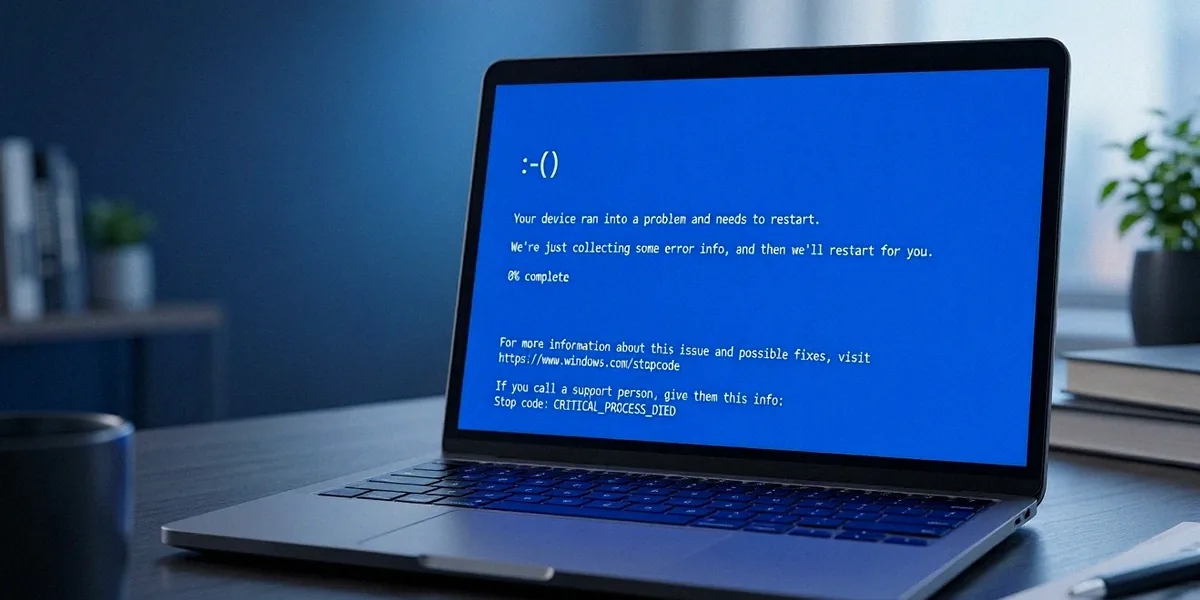
A stop code is Windows telling you exactly where it hit a wall. It is not random noise. When Windows crashes, it records the details in Event Viewer and writes a minidump file to disk, which means every blue screen leaves a trail you can follow. In our experience helping UK users, these crashes often appear right after a Windows Update or a new hardware install, because that is when drivers and system files change.
Reading the stop code and QR code on screen
The blue screen itself displays a stop code in capital letters with underscores, such as MEMORY_MANAGEMENT. Below it you will usually see a QR code. Scanning that QR code with your phone takes you to Microsoft’s stop code reference page, which gives a short description of the fault. Write the code down or photograph the screen before rebooting, because the error disappears once Windows restarts.
Where Windows stores crash dumps (C:\Windows\Minidump)
Windows saves small crash dumps in C:\Windows\Minidump. Each file is named with the date and a sequence number. You can open these with tools like WhoCrashed or BlueScreenView to see which driver or module was loaded when the crash happened. If the folder is empty, check that minidump logging is enabled in System Properties under Startup and Recovery.
The Most Common Stop Codes and What They Mean
Across the thousands of crash reports we have looked at, four stop codes come up again and again. These appear regularly on Windows 11 PCs from brands such as Dell, HP and Lenovo sold in the UK, as well as on home-built machines. Here is what each one usually means.
CRITICAL_PROCESS_DIED and corrupted system files
This code means a core Windows process stopped working. It is often caused by corrupted system files or a failed update. Running sfc /scannow and DISM /Online /Cleanup-Image /RestoreHealth from an elevated Command Prompt resolves it in many cases. If not, an in-place repair upgrade of Windows 11 usually clears it.
MEMORY_MANAGEMENT and faulty RAM
MEMORY_MANAGEMENT almost always points at your RAM or the way it is being addressed. It can be a loose stick, a failing module, or an incompatible XMP profile. This is one of the most common codes we see on custom builds, and it is why we always recommend running proper RAM diagnostics before replacing anything.
IRQL_NOT_LESS_OR_EQUAL and driver conflicts
This code typically means a driver tried to access memory it should not have. Network, graphics and audio drivers are frequent offenders. If it started after a driver update, rolling back that driver often fixes it immediately. If it started after installing new hardware, remove the device and its software, then reinstall with the latest driver from the manufacturer.
Quick Fixes to Try Before Anything Else
Before you start swapping parts, work through these steps. They are fast, free and resolve a surprising number of blue screens. PC building UK enthusiasts should also reseat RAM and check PSU connections first, since a loose cable or poorly seated module mimics a software fault.
Booting into Safe Mode on Windows 11
Hold Shift while clicking Restart from the Start menu, then choose Troubleshoot, Advanced options, Startup Settings and Restart. Press 4 for Safe Mode. If Windows runs fine in Safe Mode, the problem is almost certainly a driver or third-party app.
Running Windows Memory Diagnostic for RAM faults
Windows Memory Diagnostic is built into Windows 11. Search for it in the Start menu, choose “Restart now and check for problems”, and let it run. It takes about 20 minutes and will report any errors on the next boot. It is not as thorough as MemTest86, but it is a good first pass.
Rolling back a recent driver or update
- Open Device Manager and find the device with the yellow warning or the one you recently updated.
- Right-click it, choose Properties, then the Driver tab.
- Click Roll Back Driver if available.
- For Windows Updates, go to Settings, Windows Update, Update history, and uninstall the most recent update.
When the Problem Is Hardware, Not Software
If software fixes do not stick, the fault is likely physical. RAM diagnostics deserve proper attention here, because faulty memory causes a wide range of stop codes. MemTest86 is a free tool for RAM diagnostics that runs from a USB stick outside Windows, so it can test memory without the operating system interfering.
Testing RAM sticks one at a time
If you have two or more sticks, remove all but one and run MemTest86 overnight. Repeat for each stick in the same slot. This isolates whether a specific module is faulty or whether a slot on the motherboard is the problem. A single pass is rarely enough; aim for at least four full passes.
Checking SSD and HDD health with CrystalDiskInfo
CrystalDiskInfo checks SSD and HDD health by reading S.M.A.R.T. data. A drive showing “Caution” or “Bad” is on its way out and can cause crashes, freezes and boot failures. Back up immediately if you see warnings, then replace the drive.
Monitoring temperatures with HWMonitor
Overheating is common in UK homes during summer, especially in smaller rooms without air conditioning. HWMonitor shows CPU, GPU and drive temperatures in real time. If your CPU is hitting 90°C or above under load, clean the fans and consider reapplying thermal paste. Dust build-up in a tower case is a frequent cause of instability.
Preventing Future Blue Screens
Once your machine is stable, a little maintenance goes a long way. Most repeat offenders we see are down to outdated drivers, cheap power supplies or skipped backups.
Driver update hygiene for Windows 11
Let Windows Update handle most drivers, but for graphics and chipset, download directly from Intel, AMD or Nvidia. Avoid third-party driver updater tools; they often install the wrong package and cause more crashes than they fix.
Choosing a reputable PSU for UK builds
PC building UK enthusiasts should use reputable PSU brands such as Corsair, Seasonic, be quiet! or EVGA. A cheap unbranded power supply can deliver unstable voltages that corrupt data and trigger random blue screens. Buy from a UK retailer with a proper warranty and match wattage to your components with headroom to spare.
Setting up automatic backups
Enable File History in Windows 11 for local backups, or use a third-party tool like Macrium Reflect or Acronis for full images. If a crash ever forces a reinstall, a recent backup turns a disaster into an inconvenience.
FAQ
How do I find the stop code after my PC has restarted?
Open Event Viewer, go to Windows Logs, then System, and look for a red Error entry from the BugCheck source. The stop code is listed in the details. You can also check C:\Windows\Minidump for the crash file.
Can a blue screen damage my hardware?
No. A blue screen is Windows protecting itself by halting before damage occurs. The underlying fault, such as overheating or a failing drive, is what causes harm, not the crash itself.
Is MemTest86 better than Windows Memory Diagnostic?
Yes, for thorough testing. MemTest86 runs outside Windows and performs far more detailed patterns. Windows Memory Diagnostic is quicker and built in, so it is fine as a first check, but MemTest86 is the tool we trust for real RAM diagnostics.
My PC only blue screens after a Windows Update. What should I do?
Boot into Safe Mode, uninstall the most recent update from Windows Update history, and pause updates temporarily. Then check the Microsoft update catalogue for a known fix or wait for the next cumulative patch.
Do I need to replace my PC if I keep getting blue screens?
Almost never. In our experience, the majority of repeat blue screens trace back to one faulty component, usually RAM, a drive or a driver. Diagnose methodically before spending money on a new machine.
Blue screens feel catastrophic in the moment, but they are rarely the end of your PC. Start with the stop code, work through the software fixes, then move to hardware diagnostics if the problem persists. Patience and a methodical approach solve the vast majority of cases, and you will usually learn something useful about your machine along the way.


Post Comment