Speeding Up an Old Windows PC Before the Holidays
It’s the second week of December, the family PC has been fine all year, and now it’s chosen the worst possible moment to crawl. You’ve got presents to order, a video call with relatives booked for Boxing Day, and a festive film queue a mile long — and every click takes ten seconds to register. Before you resign yourself to a new machine, we want to show you how to revive that old PC without spending a fortune. In most cases, a few free tweaks and one sensible upgrade are enough to get it through the holidays comfortably.
Why Old PCs Slow Down (and What We Can Do About It)
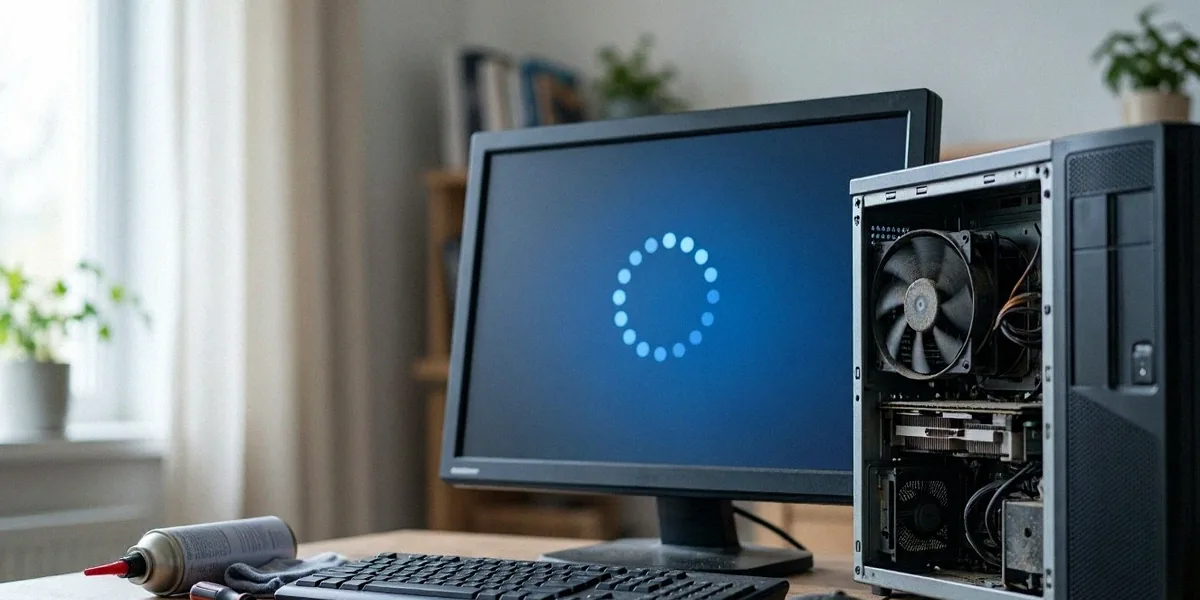
Ageing hardware doesn’t usually fail suddenly; it accumulates drag. Over a couple of years, Windows gathers startup programs, background services, temporary files, and update leftovers. Meanwhile, the physical components degrade in performance terms — hard drives fragment, thermal paste dries out, and cooling fans clog with dust. The result is a machine that feels far slower than its specifications suggest.
Plenty of UK households are running Windows 11 on hardware that technically meets the requirements but sits near the bottom of the supported list. On those machines, every background process counts. Before changing anything, open Task Manager with Ctrl + Shift + Esc and look at the Processes tab sorted by CPU or Memory. For a deeper view, type “Resource Monitor” into the Start menu — it shows exactly which processes are hammering your disk, which is often the real bottleneck on older systems.
The Usual Suspects: Startup Bloat and Background Apps
Every program that installs itself into startup adds seconds to boot time and consumes memory permanently. Cloud sync clients, printer utilities, game launchers, and manufacturer “helper” apps are the worst offenders. Left unchecked over three or four years, a typical family PC can accumulate twenty or more startup entries, many of which nobody deliberately enabled.
How Windows 11 Updates Affect Older Machines
Windows 11 updates bring security fixes, but they also add services and background tasks. On a machine with 4GB of RAM and a mechanical hard drive, the cumulative effect is noticeable — indexing, Defender scans, and update delivery optimisation can all compete for disk access. This isn’t a reason to skip updates, but it is a reason to trim everything else that’s running.
Quick Wins: Free Tweaks to Speed Up Windows Today
Start here before spending a penny. These changes take under an hour and often deliver the most dramatic improvement per minute invested.
Disable Startup Programs and Background Apps
Open Task Manager, go to the Startup apps tab, and disable anything you don’t need the moment Windows loads. Be conservative: leave antivirus and audio drivers alone, but Steam, Spotify, Adobe updaters, and OneDrive can all launch manually when you actually want them. Then check Settings > Apps > Installed apps and uninstall anything you haven’t opened in six months.
Adjust Visual Effects for Performance
Windows 11’s animations and transparency look lovely on new hardware and cost real frames on old hardware. Search for “Adjust the appearance and performance of Windows” in the Start menu, choose “Adjust for best performance,” then re-enable only “Smooth edges of screen fonts” for readability. The difference on a low-end machine is immediately obvious.
Run Disk Cleanup and Storage Sense
Use the built-in Disk Cleanup tool (search “Disk Cleanup” in Start) to remove temporary files, update caches, and old system restore points. Then enable Storage Sense in Settings > System > Storage so Windows handles routine cleanup automatically. One tip specific to UK users: BBC iPlayer downloads can consume significant disk space, often tens of gigabytes if you’ve saved a full series for offline viewing. Open the iPlayer app, check your downloads, and clear anything you’ve already watched. If you’re still on a mechanical hard drive, run the Defragment and Optimise Drives tool afterwards.
- Disable unnecessary startup apps via Task Manager
- Set visual effects to “best performance”
- Clear BBC iPlayer downloads and old installers
- Run Disk Cleanup, then defragment if you’re on a hard drive
- Enable Storage Sense for ongoing maintenance
Hardware Health Check: RAM Diagnostics and Storage Upgrades
If software tweaks aren’t enough, it’s time to check the hardware. Two areas deliver the biggest returns: memory health and storage speed.
How to Run RAM Diagnostics in Windows
Faulty RAM causes freezes, random restarts, and unexplained slowness. Windows Memory Diagnostic is a built-in tool for RAM testing — no downloads required. Type “Windows Memory Diagnostic” into the Start menu, choose “Restart now and check for problems,” and let the machine reboot into the test. It takes fifteen to thirty minutes. If it reports errors, reseat the modules first; if errors persist, replace the faulty stick.
Is It Worth Upgrading to an SSD?
If your PC still boots from a mechanical hard drive, this is the single best upgrade you can make. A 500GB SATA SSD from Crucial or Samsung costs roughly £30–£50 and can cut boot times from two minutes to fifteen seconds. Crucial and Samsung are reliable SSD brands available in the UK, and both offer free cloning software so you can move your existing Windows installation across without reinstalling. Currys and Scan are popular UK retailers for PC components, and both stock these drives regularly — Scan in particular is worth checking for competitive pricing on Samsung drives.
When to Consider More RAM
8GB is the practical minimum for Windows 11 with a browser and a few apps open. If Task Manager consistently shows memory usage above 85% during normal use, adding another 8GB is worthwhile — assuming your motherboard has a free slot and the RAM is still available at a sensible price. On very old DDR3 systems, it’s often cheaper to put that money towards a newer machine.
Software Solutions: Updates, Drivers, and Lightweight Alternatives
Outdated software is both a security risk and a performance drag. A little housekeeping here pays off.
Update Windows and Drivers
Run Windows Update until it reports no pending updates. Then check your manufacturer’s support site — if you have a Dell or HP machine, their support pages host chipset, audio, and network drivers that Windows Update sometimes misses. GPU drivers matter most: download the latest from NVIDIA, AMD, or Intel directly rather than relying on Windows Update’s older versions.
Replace Heavy Software with Lightweight Alternatives
Chrome and Edge are both far more efficient than they were five years ago, and Edge’s Efficiency Mode genuinely reduces memory use on older machines. Enable it in Settings > System and performance. For other tasks, consider lighter options: SumatraPDF instead of Adobe Reader, VLC instead of a bundled media suite, and web versions of apps rather than desktop installs.
When to Call It: Repair vs Replace for UK Households
At some point, upgrading stops making financial sense. Here’s how we think about the decision.
Cost-Benefit Analysis: Upgrade or Buy New?
If your PC is a dual-core machine from before 2015 with 4GB of RAM, spending £80 on upgrades is money you won’t get back. A budget desktop or laptop from Argos or John Lewis starts around £300–£400 and will comfortably handle browsing, video calls, and streaming. If your machine is a quad-core from 2017 onwards with 8GB of RAM, an SSD upgrade alone can buy you another two or three years.
Energy Efficiency and Recycling in the UK
Older PCs may consume more electricity, impacting UK energy bills — a decade-old desktop can draw 150–250W under load versus 50–80W for a modern equivalent. Over a year of daily use, that difference is real money at current rates. When you do replace a machine, don’t bin it: Currys operates a recycling scheme that accepts old computers and peripherals in-store, and many local council tips have dedicated small electricals recycling points.
FAQ
How long does Windows Memory Diagnostic take?
Typically fifteen to thirty minutes for the standard test, depending on how much RAM you have. The extended test takes longer but catches more subtle faults.
Can I speed up an old PC without opening the case?
Yes. Disabling startup apps, adjusting visual effects, running Disk Cleanup, and clearing iPlayer downloads are all software-only fixes that can make a noticeable difference on their own.
Is it worth putting an SSD in a ten-year-old laptop?
Sometimes. If the laptop has at least 8GB of RAM and a reasonably modern processor, an SSD can transform it. If it’s stuck on 4GB with a slow dual-core chip, the money is better put towards a replacement.
Where should I buy RAM or an SSD in the UK?
Currys and Scan are popular UK retailers for PC components. Crucial and Samsung drives are widely stocked and come with migration software. Always check your machine’s specifications before ordering.
With a few strategic tweaks — and possibly a small hardware upgrade like an SSD — most old PCs can handle holiday shopping, video calls, and streaming without complaint. Work through the free fixes first, check your RAM and storage, and only then decide whether a new machine is genuinely warranted. And whatever you change, back up your important files before you start.

Post Comment
You must be logged in to post a comment.