Customising the Windows Login Screen and Lock Screen
We see the default Windows login and lock screens more often than almost any other part of the operating system. Every boot, every wake from sleep, every time we step away for a brew — there they are. So it makes sense to spend a few minutes making them look and behave the way we want. Beyond aesthetics, a properly configured lock screen can show useful information, and a tailored login screen can speed up how quickly we get to the desktop. In this guide, we walk through the practical steps for both Windows 11 and Windows 10, covering everything from a quick background swap to registry-level tweaks for those who want full control.
Lock Screen vs Login Screen: What’s the Difference?
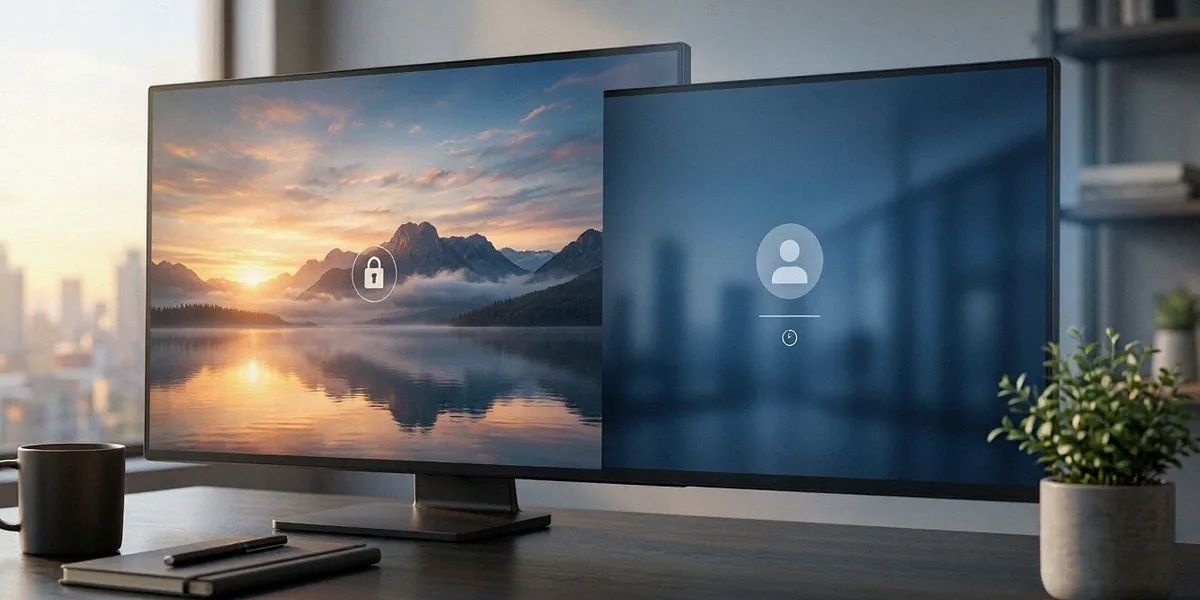
The lock screen is the first thing we see after booting or waking the PC. It displays the time, date, and a background image, and it often shows notifications or widgets depending on your settings. We dismiss it with a click, tap, or keypress. The login screen comes next — that’s where we actually enter credentials, whether that’s a PIN, password, or Windows Hello biometric check. Windows 11 and Windows 10 handle both screens in broadly similar ways, though Windows 11 has a cleaner visual style with rounded elements and a slightly different layout for the sign-in options.
Why Microsoft Separates Them
Keeping the two screens separate serves a practical purpose. The lock screen acts as an at-a-glance information panel and a visual buffer, while the login screen is strictly about authentication. This separation means Microsoft can push content — like Windows Spotlight images and tips — to the lock screen without exposing any account information before sign-in. It also allows organisations to enforce branding or legal notices on the login screen independently of whatever the user has chosen for their lock screen.
Common Confusions for UK Users
A frequent point of confusion is changing the lock screen background and expecting the login screen to follow. Sometimes it does, sometimes it doesn’t, and the behaviour can differ between Windows editions. Another common issue is Windows Spotlight appearing in US English with American spelling on the tips and captions. We can usually fix that by checking Region settings under Settings > Time & Language, making sure the country is set to United Kingdom.
Changing Your Lock Screen Background and Settings
The quickest route is Settings > Personalisation > Lock screen. From the dropdown under “Personalise your lock screen”, we can choose between Windows Spotlight, Picture, and Slideshow. Picture lets us pick a single static image, while Slideshow rotates through a folder of our choosing — handy if we have a collection of photos from trips around the UK.
Using Windows Spotlight for Daily Images
Windows Spotlight pulls a fresh image from Microsoft’s servers each day. Windows Spotlight often features UK landmarks like the Lake District or London Eye, alongside landscapes from around the world. It’s the lowest-effort option and gives a bit of variety without any maintenance. If you want to know more about the current image, hovering over the “Like what you see?” icon reveals a caption and a link.
Setting a Static Image or Slideshow
For a consistent look, choose Picture and browse to your preferred image. A Lake District panorama or a London skyline shot works well and gives the machine some personality. Slideshow mode is better if you’d rather see something different each day — point it at a folder, set the interval, and Windows handles the rest. Both options apply immediately, no reboot required.
Lock Screen Status and App Notifications
Under the same Lock screen settings page, we can choose which apps show detailed status on the lock screen — calendar, mail, weather, and so on. This is genuinely useful if you want a glance at your next meeting before you sign in. For privacy, set it to “Don’t show notifications” if you share the PC or work in an office.
Personalising the Login Screen Background
The login screen background usually mirrors the lock screen, but not always — and the ability to change it independently depends on your edition of Windows. Windows 11 Pro and Enterprise allow login screen background changes via Group Policy, while Home users need to use the Registry Editor or a third-party tool. UK users running small businesses often want a consistent brand image on the login screen, which makes the Group Policy route particularly attractive.
Using Group Policy Editor (Pro and Enterprise)
- Press Win + R, type gpedit.msc, and press Enter.
- Navigate to Computer Configuration > Administrative Templates > System > Logon.
- Open “Always use custom logon background” and set it to Enabled.
- Place your chosen image at C:\Windows\System32\oobe\info\backgrounds\backgroundDefault.jpg.
- Restart the PC to see the change.
This works reliably on Pro and Enterprise, and the setting survives most updates. It’s the cleanest way to enforce a corporate or personal image.
Editing the Registry for Home Users
Home editions don’t include Group Policy Editor, so we go through the Registry. The Registry Editor path for login screen background is HKLM\SOFTWARE\Policies\Microsoft\Windows\System. Create a DWORD value named UseOEMBackground and set it to 1, then place your image at the same oobe path used above. Take a backup of the registry before making changes — a wrong key here can cause sign-in problems.
Third-Party Tools Like Winaero Tweaker
If registry editing feels risky, Winaero Tweaker offers a friendlier interface for many of the same tweaks, including login screen background, sign-in text, and blur effects. It’s free, widely used, and saves digging through Group Policy or the registry manually. Just remember to download it from the official source.
Customising Login Options: PIN, Password, and Picture Password
Head to Settings > Accounts > Sign-in options to configure how you authenticate. Windows supports a traditional password, a PIN, a picture password, and Windows Hello face or fingerprint recognition on compatible hardware. UK users can set a PIN for faster login than a traditional password, and it’s tied to the specific device rather than your Microsoft account, which adds a small security benefit.
Setting Up a PIN in Windows 11
Under Sign-in options, click PIN (Windows Hello) and choose “Set up”. You’ll confirm your account password, then enter a PIN of your choosing. A four-digit PIN is convenient, but a longer alphanumeric PIN is more secure. The PIN works offline and is stored locally, so it’s fast even on older hardware.
Using Picture Password
Picture password lets you draw gestures on a chosen image — taps, circles, and lines. It’s fun and reasonably secure, though not as fast as a PIN for everyday use. Pick an image with clear landmarks to make the gestures easy to remember.
Enabling Windows Hello
If your laptop or desktop has a compatible IR camera or fingerprint reader, Windows Hello lets you sign in with your face or finger. Set it up under Sign-in options and follow the prompts. It’s the fastest option available and works well with the lock screen — you dismiss the lock screen and Windows recognises you immediately.
Advanced Tweaks: Sign-in Screen Text, Colours, and Blur
Beyond backgrounds, there are a few cosmetic tweaks that UK PC builders in particular seem to enjoy — a custom sign-in message, disabled acrylic blur, and adjusted accent colours. These are all reversible, so experiment freely.
Adding a Custom Sign-in Message
Open the Registry Editor and navigate to HKLM\SOFTWARE\Microsoft\Windows\CurrentVersion\Policies\System. Create two string values: legalnoticecaption for the title and legalnoticecaption for the body text. This is often used for a welcome message or a security reminder, and it appears before the login prompt.
Disabling the Blur Effect
The acrylic blur on the sign-in screen can look smart, but on lower-end hardware it adds a small delay. Under Settings > Personalisation > Colours, toggle Transparency effects off. For a more thorough removal, the registry key DisableAcrylicBackgroundOnLogon under the Policies\System path does the job.
Changing Accent Colours
Accent colours affect the login screen buttons and highlights. Settings > Personalisation > Colours lets you pick a colour manually or pull one from your background image. It’s a small change but ties the whole sign-in experience together.
Troubleshooting Common Customisation Issues
Customisation doesn’t always stick first time. Windows updates may reset custom lock screen settings, so regular checks are advised — particularly after feature updates, which have a habit of reverting personalisation to defaults.
Lock Screen Image Not Updating
If Spotlight stops rotating, check that you’re signed in with a Microsoft account (Spotlight requires one). Also confirm Region is set to United Kingdom under Time & Language, as UK-specific Spotlight content depends on it. Clearing the Spotlight cache under %localappdata%\Packages\Microsoft.Windows.ContentDeliveryManager_cw5n1h2txyewy\LocalState\Assets often fixes stuck images.
Login Screen Reverting After Update
Major Windows updates can overwrite the oobe background folder. If your custom image disappears, re-copy it back and verify the registry or Group Policy setting is still in place. Keeping a backup of the image and the registry key makes restoration quick.
Group Policy Not Applying
Run gpupdate /force from an elevated Command Prompt, then reboot. If the policy still doesn’t apply, check that the image is the correct format (JPEG, under 256 KB) and located in the exact path required. Regional settings and time zone mismatches can also cause odd behaviour on the lock screen, so verify those under Settings > Time & Language.
FAQ
Can I have a different image on the lock screen and login screen?
Yes, but only on Windows 11 Pro and Enterprise via Group Policy, or on Home editions through the Registry Editor. The login screen image is set independently from the lock screen background, so the two can differ.
Why does Windows Spotlight show American spelling?
This usually means your region is set to United States. Go to Settings > Time & Language > Language & Region and set Country or region to United Kingdom, then sign out and back in.
Is a PIN more secure than a password?
A PIN is tied to a specific device and never leaves it, which makes it resistant to many remote attacks. A long password is still stronger against brute force, but for everyday use a six-digit or longer PIN is a sensible balance.
Will a Windows update undo my customisations?
Sometimes, yes. Feature updates in particular can reset lock screen images and sign-in text. We recommend checking your settings after each major update and keeping backups of any custom images and registry keys.
Do I need Pro to change the login screen background?
Not strictly — Home users can achieve the same result through the Registry Editor at HKLM\SOFTWARE\Policies\Microsoft\Windows\System. Pro and Enterprise simply offer the friendlier Group Policy route.
With a handful of tweaks, we can turn two of the most-seen screens in Windows into something that feels personal, informative, and quick to get past. Whether it’s a Lake District backdrop on the lock screen, a PIN for speed, or a branded login image for a small business, the options are there. Experiment safely, back up your registry before editing, and check your settings after each major Windows update to keep things looking the way you intended.


Post Comment